Collect files with OneDrive file requests
Use an upload-only link to collect files without exposing the destination folder.
Need someone to send you a file that email won’t accept? OneDrive’s Request files feature can save some back-and-forth :)
In OneDrive for work or school, select a folder, choose Request files, describe what you need, then select Next and copy the link. People with that link can upload without a OneDrive account. They can’t see the folder’s contents, download other submissions, or see who else uploaded.
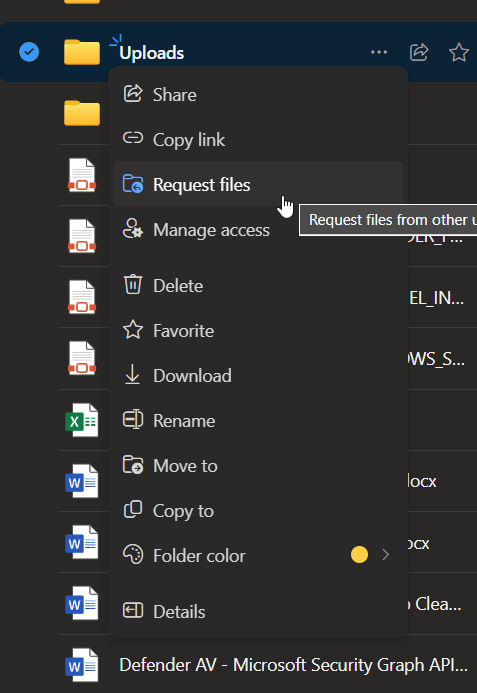
There is an important catch: your administrator must enable file requests and Anyone links. If your organization blocks anonymous links, don’t loosen that policy just for this feature. Use your approved file-transfer option instead.
Treat the link as an upload invitation anyone can forward. An uploader who isn’t signed in can enter an unverified name, so don’t use it as proof of identity. When you’re done collecting files, open the folder’s Manage access and delete the file-request link to stop further uploads.
Create a file request · Administrator requirements
Original post: 22 May 2024. Documentation checked 13 October 2026.