Use a browser profile for cloud admin accounts
Keep admin sessions separate while allowing device-based Conditional Access checks.
Using an InPrivate window for your cloud admin account? A dedicated browser profile is worth a look.
Private browsing prevents the device check needed for device-based Conditional Access. If your policy requires a compliant device, the sign-in can fail even though you’re using the same managed computer.
On a managed Windows device registered to the same tenant, use Microsoft Edge:
- Create a separate profile and sign the browser itself in with your admin account. Signing into the admin portal alone isn’t the same thing.
- Use that profile for the matching admin identity. Keep productivity browsing in your everyday profile.
- Check the resource sign-in in Entra’s logs. The Device info tab should show the expected device and compliance state; Conditional Access shows which policies applied.
Microsoft’s browser requirements explain the private-mode limitation. The Edge guidance covers matching the resource identity to the signed-in profile.
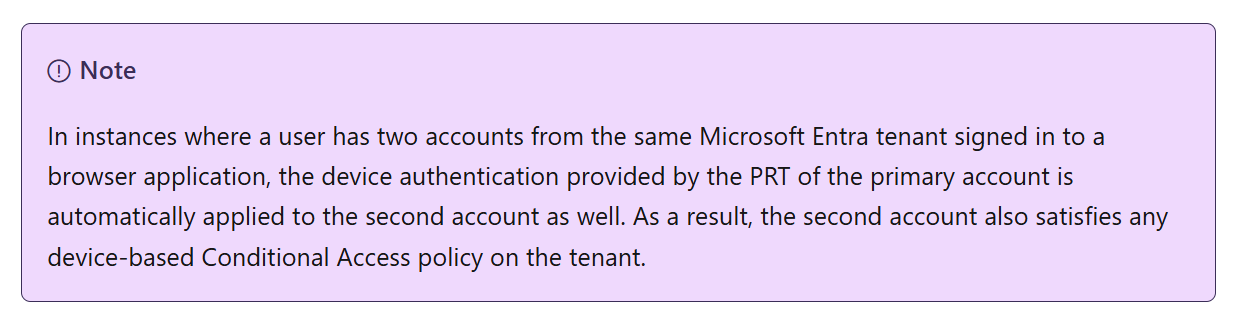
A profile separates browser sessions, but it doesn’t make a device compliant or harden the computer underneath them. For privileged access, keep working toward a dedicated, secured admin workstation. Don’t weaken the device requirement just to make InPrivate work.
Original post: 27 September 2025. Documentation checked 13 October 2026.