Audit device code flow before blocking it
Find device code sign-ins and test a Conditional Access block before enforcing it.
Have you blocked Device Code flow by default yet?
If not, here’s my original Graph PowerShell Beta query with paging and a seven-day window added. It can be very slow, so start with a sensible date range:
1$since = (Get-Date).ToUniversalTime().AddDays(-7).ToString('yyyy-MM-ddTHH:mm:ssZ')
2Get-MgBetaAuditLogSignIn -All `
3    -Filter "createdDateTime ge $since and authenticationProtocol eq 'deviceCode'"
You need the Microsoft Graph Beta Reports module, AuditLog.Read.All, an Entra ID P1 or P2 license, and an appropriate role for delegated access, such as Reports Reader. Beta APIs can change; this updated query hasn’t been rerun against a tenant. Results are limited to your available log retention; an empty week doesn’t prove nobody needs the flow.
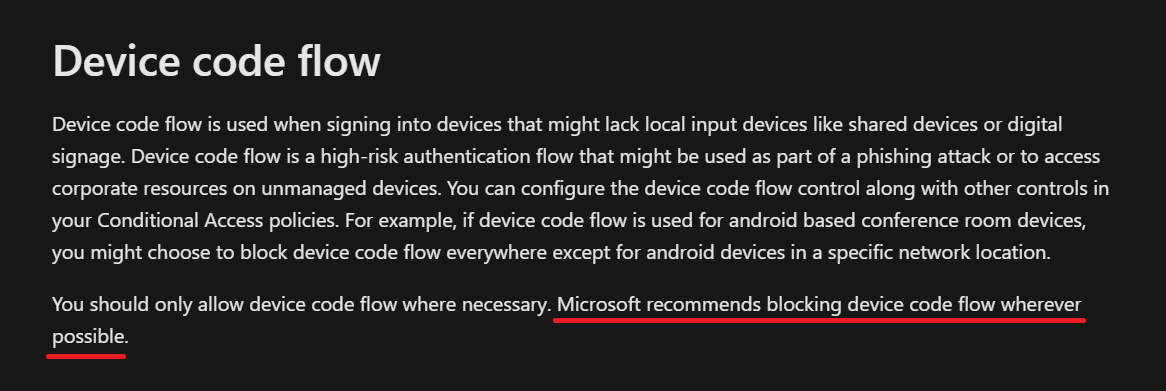
Teams phones, conference-room equipment, and administrative CLI tools are places to look for legitimate use. Where possible, move CLI sign-ins to a supported browser or broker flow. Keep necessary exceptions narrow and documented.
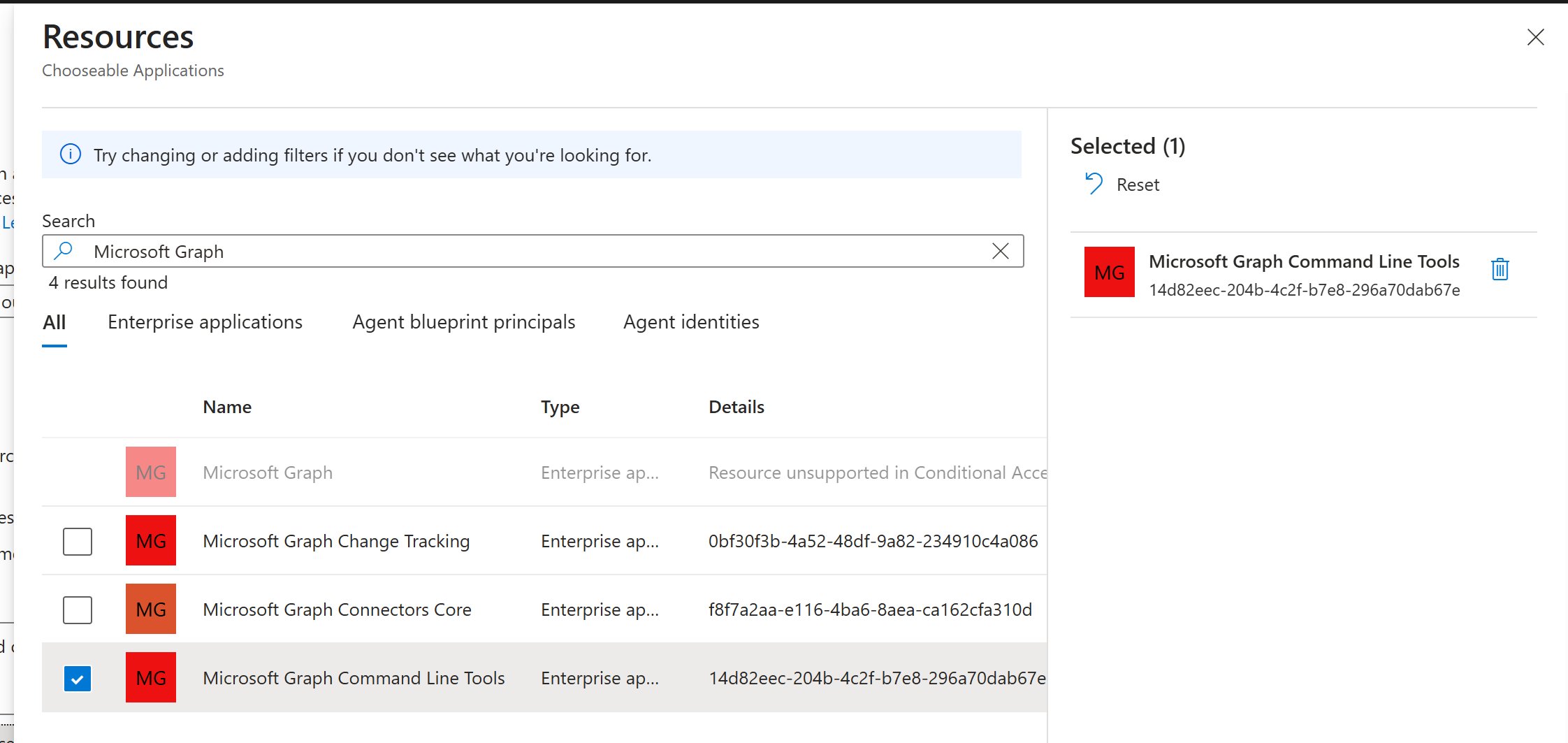
Microsoft recommends getting as close as possible to blocking device code flow, so go create the CA policy ;)
Start in Report-only: target the intended users and resources, select Authentication flows > Device code flow, and Block access. Exclude emergency access accounts, review the impact and legitimate dependencies, then turn it on. Authentication-flow tracking can affect later requests in the same sign-in session, so test the whole workflow.
Conditional Access walkthrough | Authentication-flow behavior | Sign-in API | Sign-in licensing
Original post: 1 May 2024. Related posts: legitimate uses and CLI sign-in choices. Documentation checked 14 October 2026.