You really should use managed service accounts instead of user accounts for services, IIS, scheduled tasks, SQL, etc., wherever the application supports them. Even if you have a credential vault that rotates passwords and handles dependencies, managed service accounts are probably still better.
Steve Syfuhs has a great thread on how they work. This one is about how to use them :)
Adapted from my February 5, 2021 thread. Setup details have been clarified against current documentation.
A couple of things to understand first
Managed service account passwords are incredibly strong, and Windows handles password changes for you. Their long, automatically generated passwords make offline password cracking through Kerberoasting impractical, especially with AES. That doesn’t prevent an attacker from requesting a service ticket or stealing credentials from a compromised host.
The password can be retrieved on one authorized server and used elsewhere if authentication restrictions don’t prevent it. Pass-the-hash and pass-the-ticket are still concerns. Be careful about which machines can retrieve the password and who can administer those machines.
There are two account types here. A standalone managed service account, or sMSA, is tied to one computer. A group managed service account, or gMSA, can be used by multiple authorized computers. The walkthrough below is for a gMSA.
First, check the KDS root key
On a domain controller, open an elevated PowerShell session with the required administration tools and permissions, and check whether you already have a KDS root key:
1Get-KdsRootKey
If you get nothing, create one:
1Add-KdsRootKey -EffectiveImmediately
Now wait 10 hours. Seriously :(
That wait gives the domain controllers time to replicate the key before you start relying on it for gMSA passwords. Check replication health too; waiting doesn’t fix a broken replication topology. Don’t create another key if one already exists, and don’t use the backdated-key shortcut in production. Microsoft documents that shortcut for a test environment with only one domain controller.
Microsoft’s KDS root key guidance covers the prerequisites and initialization behavior.
Create the gMSA
First, create a security group named DVWA-Servers and add the computer accounts of the servers that should be allowed to retrieve this gMSA’s password. Keep that membership limited to the hosts that actually need it.
Then create the gMSA in PowerShell:
1New-ADServiceAccount -Name DVWA-Svc -DNSHostName DVWA.domain.com -PrincipalsAllowedToRetrieveManagedPassword DVWA-Servers -KerberosEncryptionType AES256
Replace the example names with your own. Make sure your hosts support the encryption type you select, and configure any DNS records and service principal names required by the application. The account creation command isn’t a complete application configuration.
For an sMSA, New-ADServiceAccount uses the -RestrictToSingleComputer parameter set instead. Don’t just append that switch to the gMSA command above; the account types have different setup requirements.
On each server where the gMSA will run, install it and test it:
1Install-ADServiceAccount -Identity DVWA-Svc
2Test-ADServiceAccount -Identity DVWA-Svc
The test should return True. If it doesn’t, resolve password retrieval, group membership, replication, and host requirements before moving the service over. Microsoft’s gMSA management guide has the full host setup procedure.
Windows services
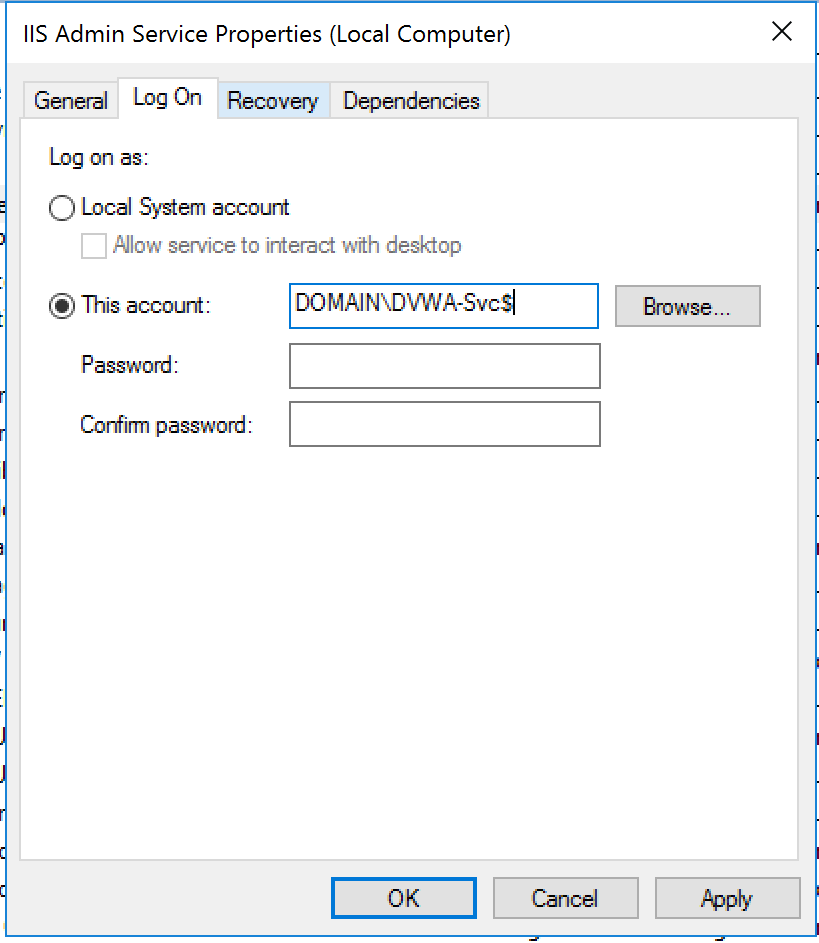
You can grant Log on as a service using secpol.msc. The service configuration tools may grant it when you add the account, but verify the effective policy, particularly if Group Policy controls user rights.
Use DOMAIN\DVWA-Svc$ as the service account and leave the password blank. Don’t forget the trailing $, and grant the account access to the files and other resources the service needs.
IIS
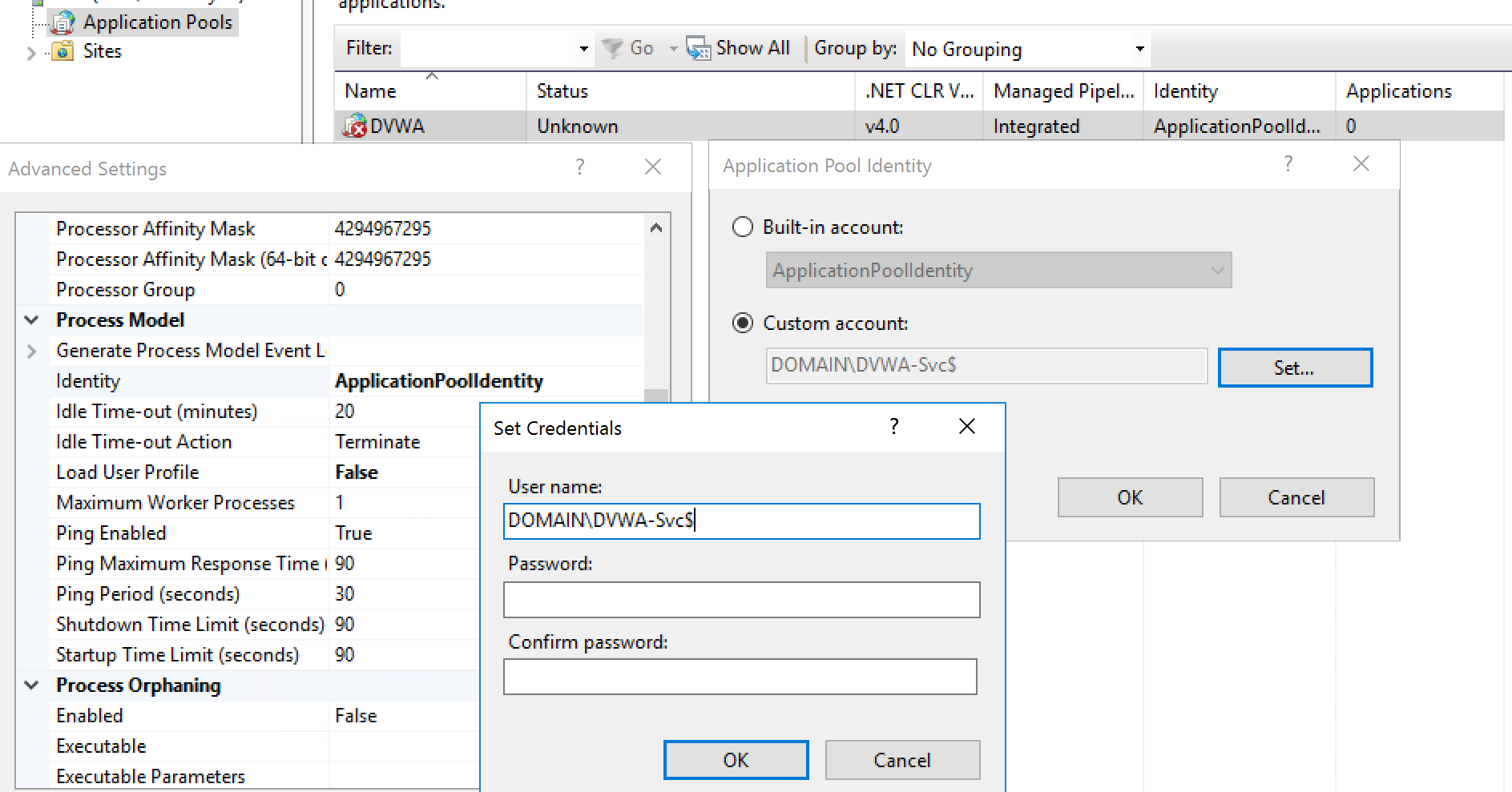
Open the IIS console, go to the application pool you want to use the gMSA on, and open Advanced Settings.
Scroll down to Identity and edit it to use a custom account. Specify DOMAIN\DVWA-Svc$ without a password and click OK all the way out.
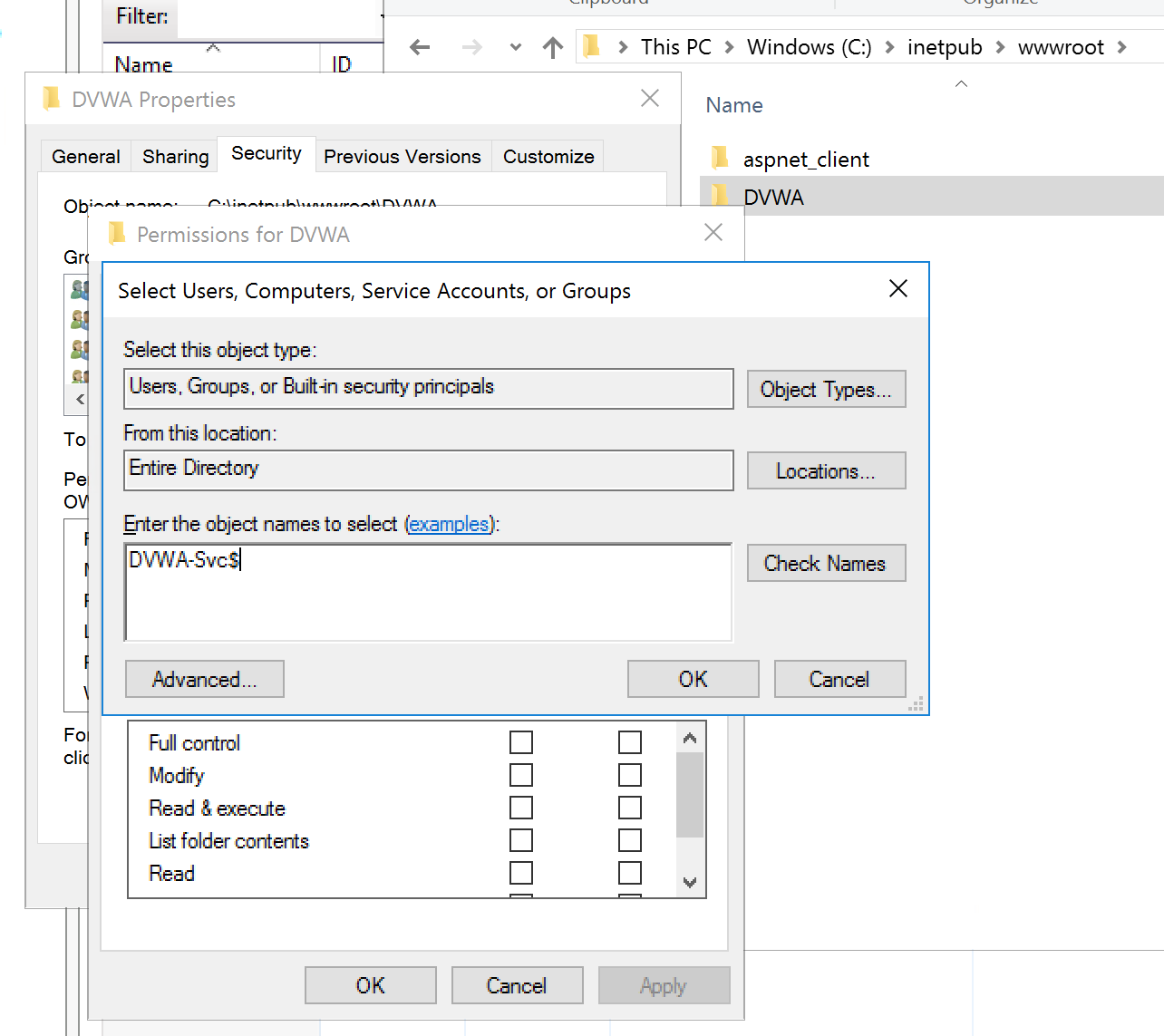
Grant folder permissions to the gMSA too. Changing the application pool identity doesn’t grant access to your content or anything else the application needs.
Scheduled tasks
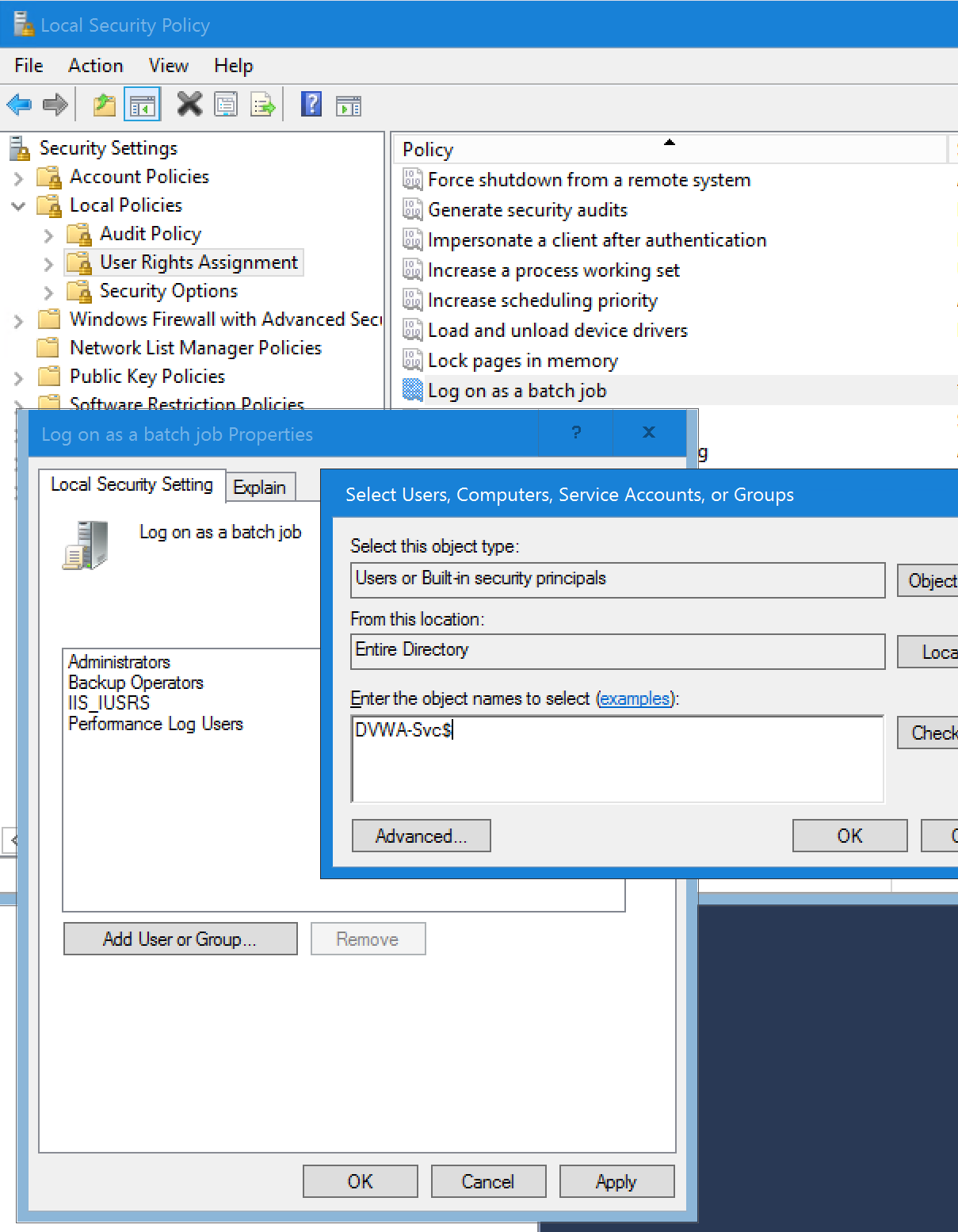
First, make sure you grant Log on as a batch job to the gMSA using secpol.msc or the Group Policy that manages the server.
Easy mode: create the task using the GUI and leave it as SYSTEM while configuring it, without running it. Then open an elevated command prompt and change the identity:
1schtasks /change /TN \DVWA-Task /RU DOMAIN\DVWA-Svc$ /RP
Leave the password blank at the prompt.
If you prefer PowerShell :)
1$principal = New-ScheduledTaskPrincipal -UserID 'DOMAIN\DVWA-Svc$' -LogonType Password
2Set-ScheduledTask -TaskName DVWA-Task -Principal $principal
Now verify everything was updated in Task Scheduler and is working properly. Don’t forget permissions!
Credentials used by the task
Running things as the managed service account using PsExec was something I’d never thought about when Steve mentioned it.
That can let you export a credential for the task to use, or configure access to a certificate for certificate-based authentication. For example, Get-Credential | Export-Clixml can create a credential file when you supply a destination path.
Be aware of the boundary: on Windows, Export-Clixml uses DPAPI, and that credential file can only be decrypted by the same account on the same computer. It isn’t a portable secret for every server using the gMSA. Protect the file and any certificate private keys too.
Secure the places that can use it
gMSAs are a very secure way to do service accounts, but there are still areas you may need to secure further. My original thread linked this Stealthbits discussion of securing gMSA passwords.
Also consider Authentication Policies and Authentication Policy Silos to limit where managed service accounts can be used. Password retrieval permissions and authentication restrictions solve different parts of the problem. Get the account working, give it only the permissions it needs, and protect the hosts that can use it.
The source thread continues through the final post.